
Getting started
Open TermiGram, choose protection, add a server, and make your first connection.
Before you begin
You need:
- Telegram on your phone or desktop.
- Access to @TermiGram_Robot.
- A reachable SSH server.
- Its host, port, username, and either a password or private key.
Use test credentials first
For your first connection, prefer a non-critical server or a restricted account. Never send credentials to the support bot or a human operator.
1. Open the Web App
Open @TermiGram_Robot, tap the Web App button, and let Telegram launch TermiGram. The Web App validates the signed Telegram session; opening /app/ as an ordinary browser page is not a supported login flow.
The book icon in the Web App header, immediately before the protection shield, opens this documentation over your workspace. Closing it returns you to the same TermiGram screen without closing active Terminal or SFTP windows. The documentation follows the Web App language. Use the refresh action if the embedded page needs to be reloaded, or the external-link action to open the same guide in a separate browser.
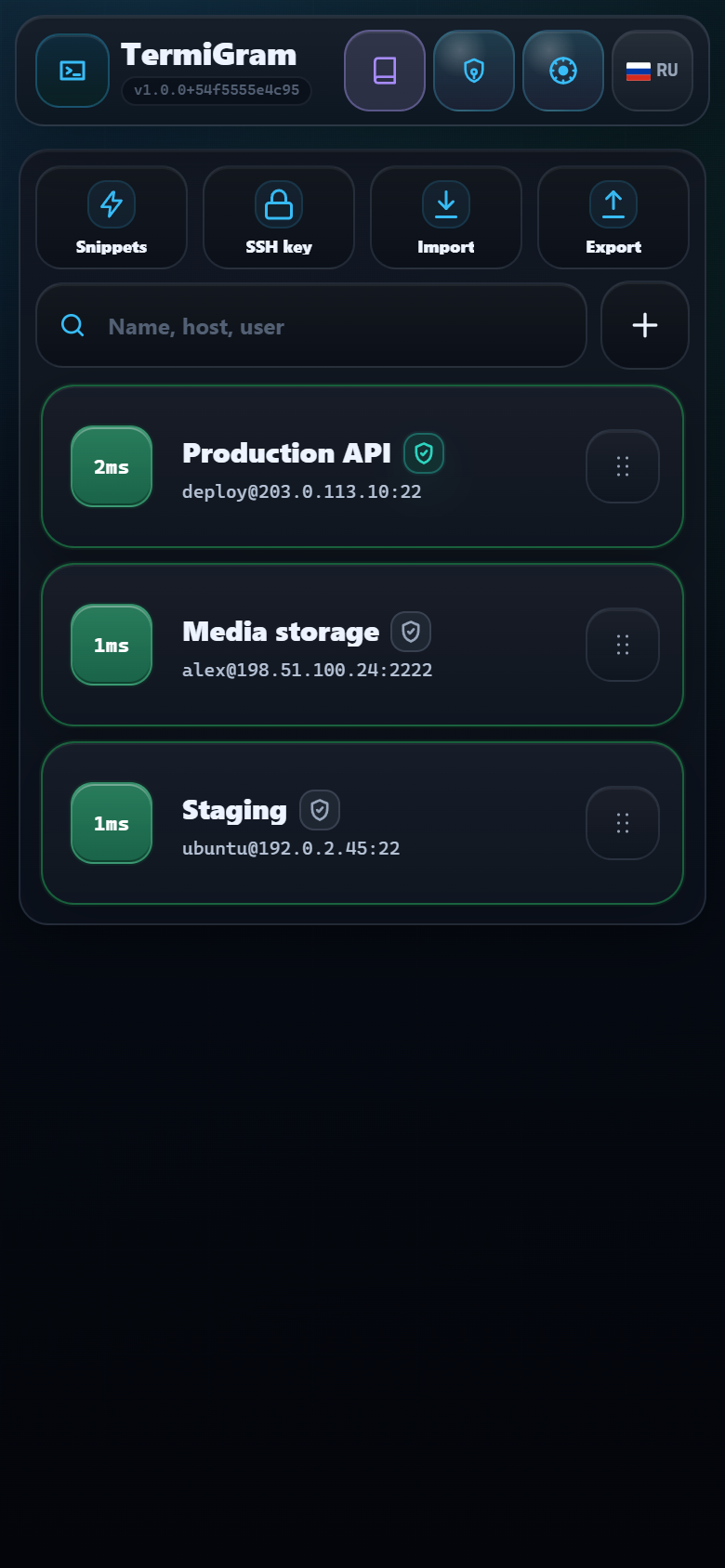
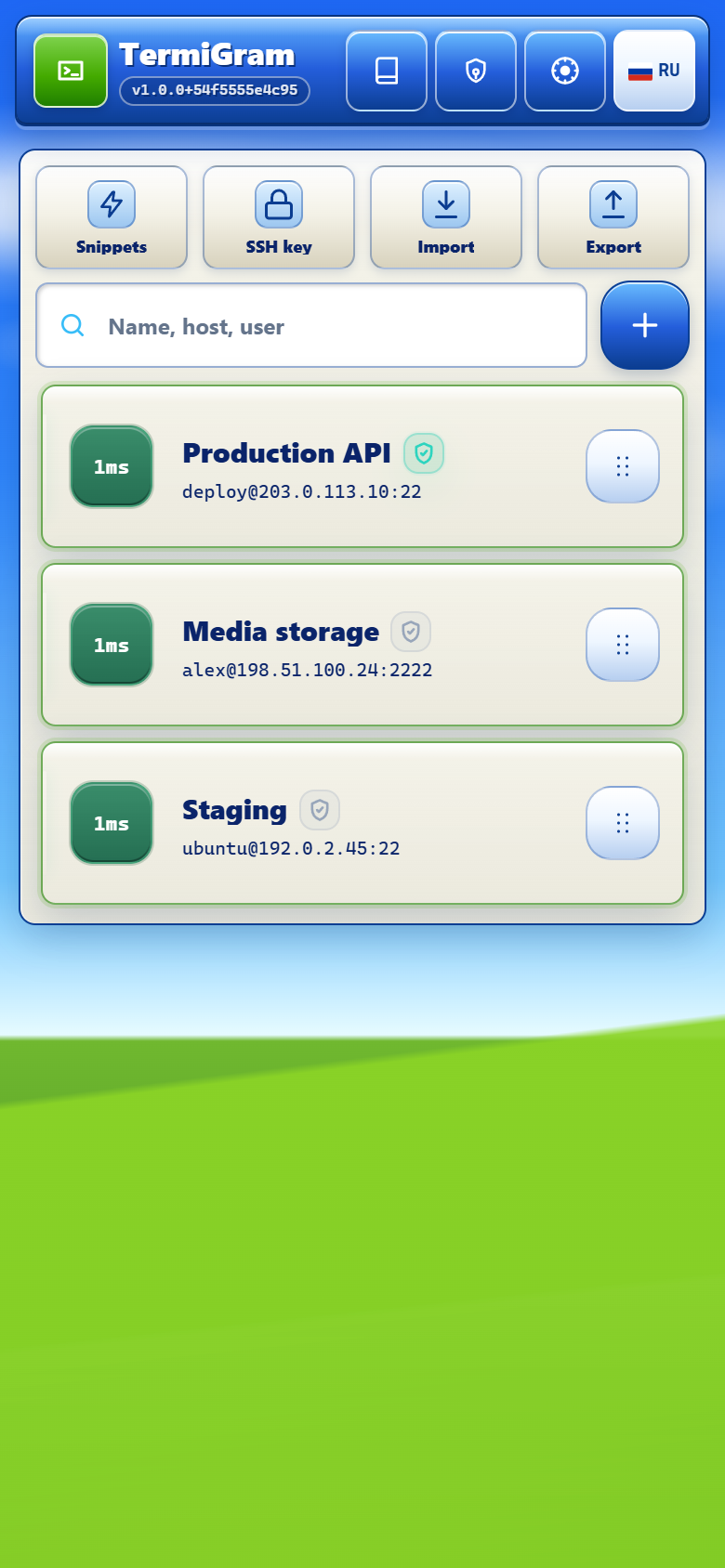
2. Choose your protection level
- Standard protection gets you started quickly and keeps stored secrets encrypted by TermiGram.
- Master Password adds a local device-side barrier before protected secrets can be used.
You can read the full behavior and recovery limits in Master Password.
3. Add a server
Open the add profile flow and enter:
| Field | Example | Notes |
|---|---|---|
| Label | Production API | A name that is clear on a small screen. |
| Host | server.example.com | A hostname or allowed IP address. |
| Port | 22 | Use the port configured by your SSH server. |
| Username | deploy | Prefer a restricted account over root. |
| Authentication | Password or private key | SSH keys are recommended for long-term access. |
You can also use profile import or an SSH config. See SSH keys, import, and export.
4. Connect
Tap the server card, choose Connect, and wait for the status to change. A successful connection opens a terminal tab. Use SFTP when you need files instead of a shell.
5. Learn the mobile controls
The terminal toolbar provides keys that are awkward on a phone keyboard, including Esc, Tab, arrows, Ctrl, |, and ~. Open SSH terminal before running a long or sensitive task.
Optional bot-assisted import
The main bot recognizes SSH details in an ordinary message and prepares a quick connection flow. For several servers, send @TermiGram_Robot a .txt document up to 64 KB. One-line records can use either separator:
deploy:password@server.example.com:22
root;another-password@192.0.2.10:2222
Multiline blocks with IP, login, password, and port fields are supported as well. One file saves up to 20 unique profiles, and each user can send up to 3 such files per minute. Duplicates are matched by login, host/IP, and port, and an existing profile's password is never overwritten. The Rich report lists added and skipped servers without displaying passwords.
Send files only to the main bot
.txt files and JSON backups contain sensitive connection data. Never send them to @TermiGram_Support_Bot, public chats, or other people.
Next steps
- Organize and reorder server profiles.
- Set up SSH keys.
- Create safe command snippets.
- Learn when to use Guest access or Full access.